Umbrelly

Demo videos

Short walkthroughs of the product, 43 to 51 seconds each. Every video uses a fictional demo roster, so no real student appears anywhere.

Videos play from Umbrelly's own servers. No video loads until you press play, and no third-party player is involved.

For teachers

  • Still from the video "Hall passes"

    Hall passes

    Students ask on their Chromebook. You see who is out and for how long, without stopping class.

    Read the transcript

    A student needs to step out. You're in the middle of teaching. You shouldn't have to stop. With Umbrelly hall passes, students ask on their Chromebook, and you see who's out and for how long, without stopping class. A student taps the Umbrelly button, picks where they're going, and heads out. Their pass counts down right on their screen, so they know when to head back. On your class page, Out of room shows who's gone, where they went, and for how long. If a pass runs over, it turns amber for both of you. A calm nudge, not an alarm. When they're back, it clears on its own. Umbrelly. Safe classrooms. Smart coverage.
  • Still from the video "Pause a student's tab"

    Pause a student's tab

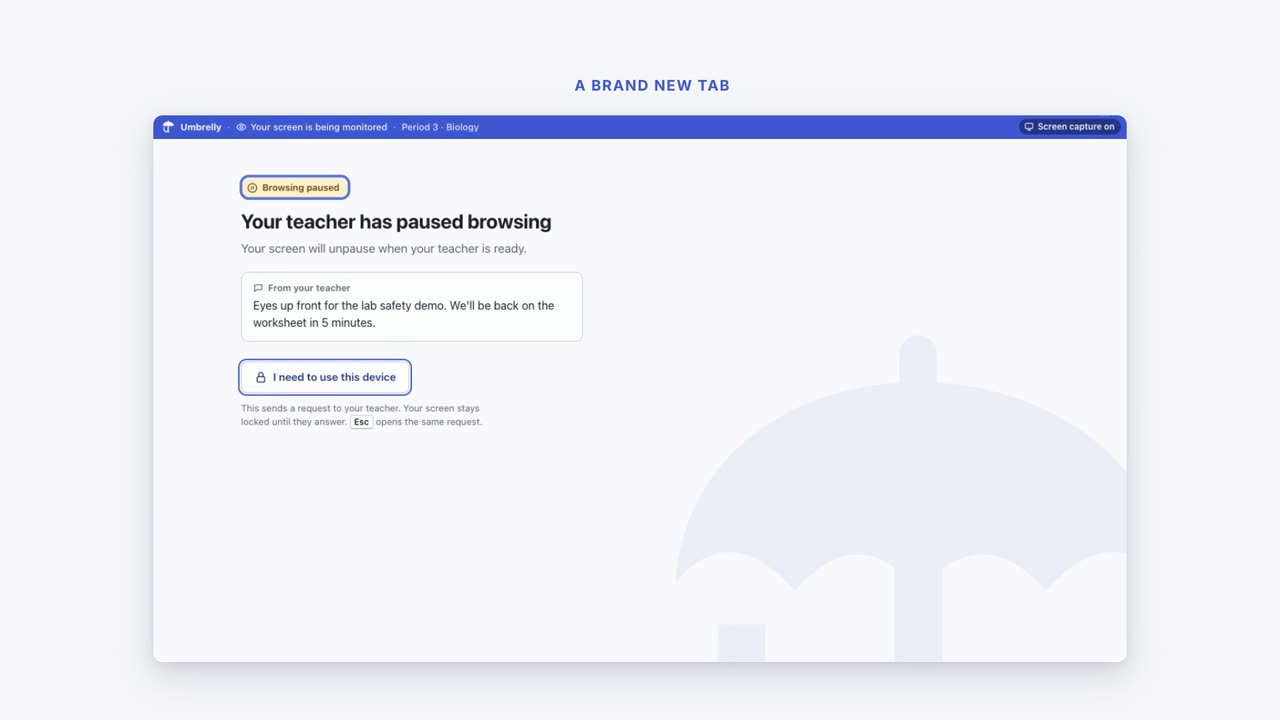
    One tap replaces a student's screen with a pause notice. They can ask to unlock, and you decide.

    Read the transcript

    A fire drill. An announcement. You need every screen down, and you need it right now. With Umbrelly, one tap locks a screen, even a brand new tab. They can ask to unlock, and you decide. You pick a student, add a short message if you want, and lock the screen. Whatever they had open is replaced with one screen: browsing paused, and your message if you left one. If they need the device, they ask to unlock. Their screen stays locked until you answer. You can unlock them, reply first, or leave it locked. Nothing changes until you choose. Unlock it, and their screen picks back up. Umbrelly. Safe classrooms. Smart coverage.
  • Still from the video "When a site is blocked"

    When a site is blocked

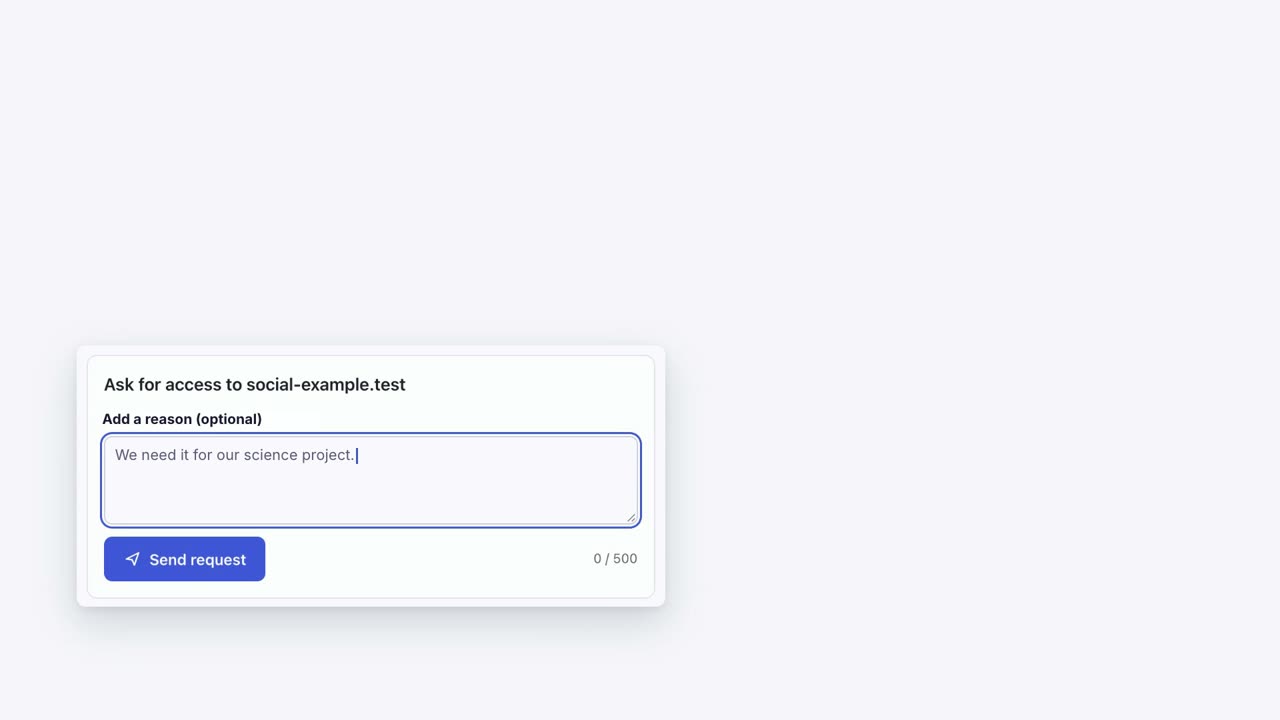
    The page names the site, the category, and the reason. Access requests go to the school admin.

    Read the transcript

    A student hits a blocked site and asks you why. You shouldn't have to explain the filter. With Umbrelly, the page explains itself: site, category, and why. Requesting access goes straight to your school admin, not you. The page names the site, the category, and the reason. No guessing. They tap Ask for access, add a quick reason, and send it. It lands on your school admin's dashboard, under Waiting on you, with the student's reason attached. One click adds the site to that policy, and it opens for the class within minutes. Need a site for a lesson? Your admin is one request away. Umbrelly. Safe classrooms. Smart coverage.
  • Still from the video "Message and present"

    Message and present

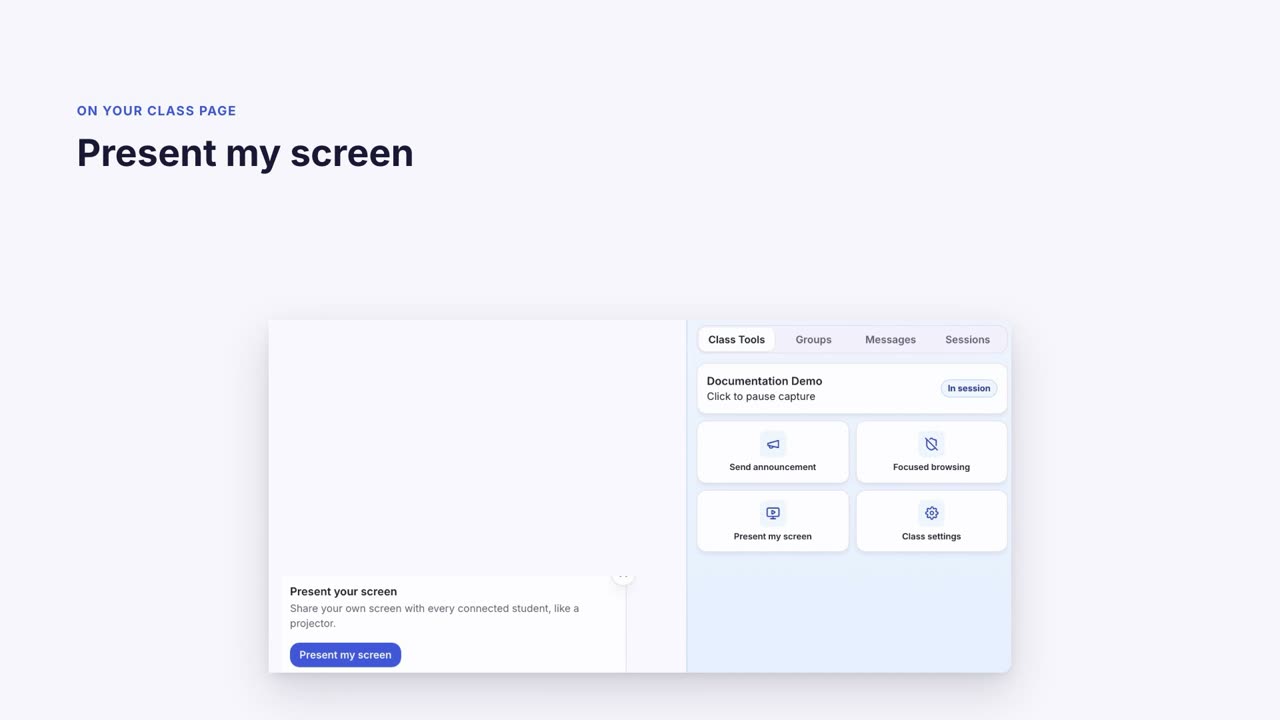
    Message one student, a group, or the whole class, or share your screen like a projector.

    Read the transcript

    Sometimes you need one student's attention, or everyone's, without leaving your desk. From your class page, message a student, a group, or the whole class, and share your screen. Send a note and it pops up right on their screen. They can write back. Message one student, a whole group, or the entire class, whichever you need. Present my screen shares your screen with every connected student, like a projector. Their screen shows yours, and you can stop presenting whenever you're ready. Messages and Present my screen, right on your class page. Umbrelly. Safe classrooms. Smart coverage.
  • Still from the video "Your week in one glance"

    Your week in one glance

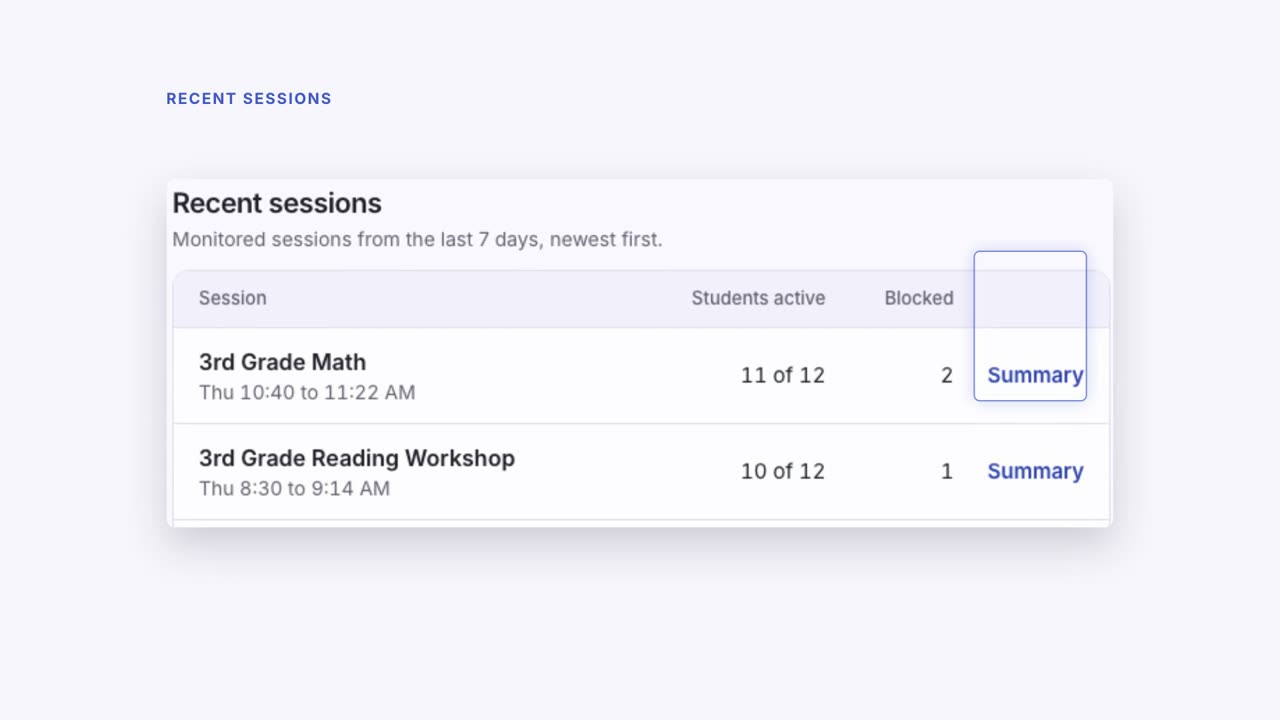
    A one-sentence summary of the past week, then class by class, with Reports for the detail.

    Read the transcript

    Monday morning. Four classes, a full week behind you. What actually happened while you were teaching? Your Umbrelly Dashboard sums up the past week in one sentence, then breaks down what happened, class by class. See which sites got blocked, how many students were involved, right beside today's classes at a glance. Every monitored session from the week, one tap from its summary, next to the sites your students visited most. Need more? Reports goes deeper, class by class and student by student, and exports straight to CSV or PDF. Your whole week, always right there, one glance away. Umbrelly. Safe classrooms. Smart coverage.
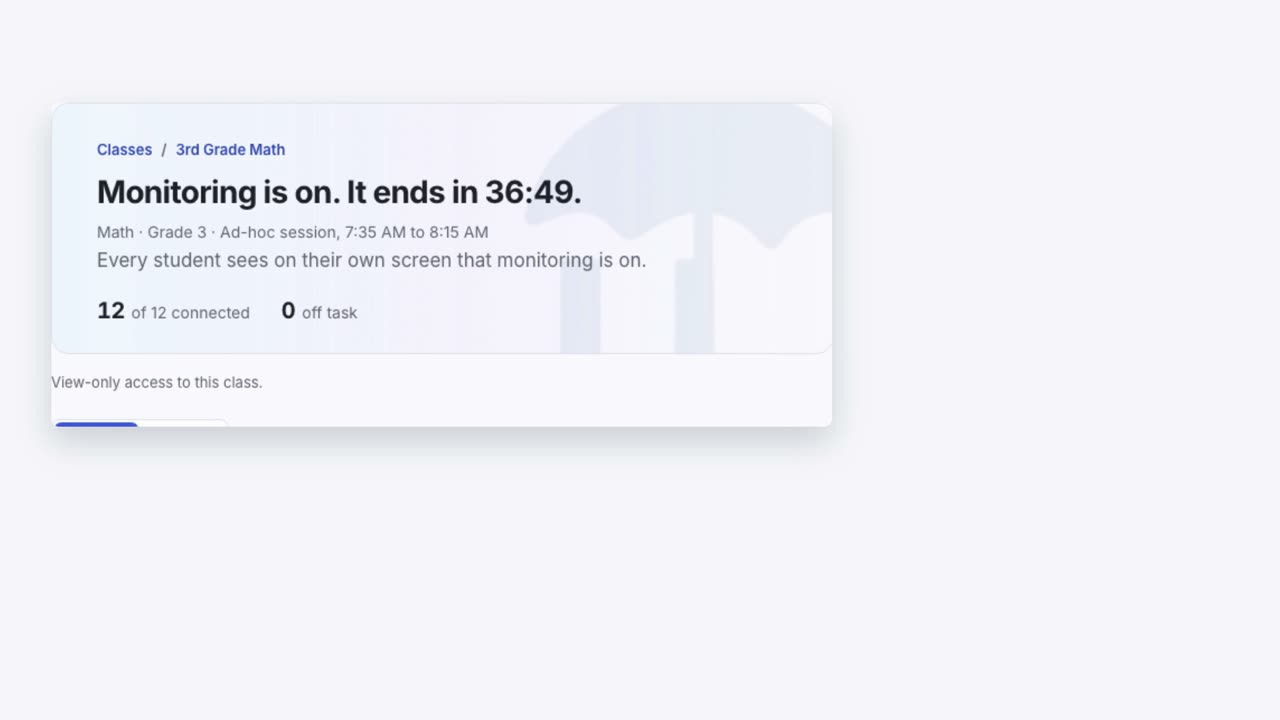
  • Still from the video "After class: the session summary"

    After class: the session summary

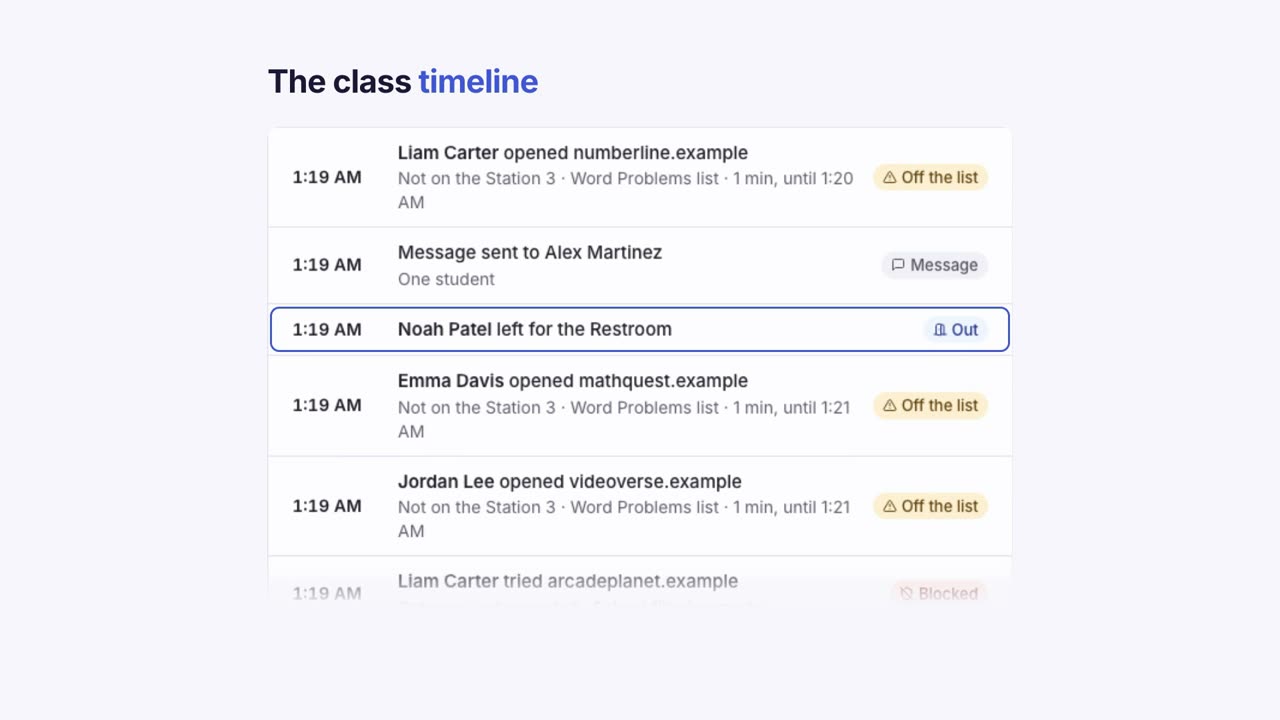
    A headline and a timeline of what the logs show: blocks, hall passes, time off the lesson list.

    Read the transcript

    Class ends, and you move straight to the next one. What actually happened in between? Every Umbrelly session gets a summary on the class page's Sessions tab: one headline, then a timeline of what happened. It opens with one line: who connected, what got blocked, and how long it ran. Below that, a class timeline: time off the lesson list, every block, every hall pass, in order. Blocked sites show who tried and how often. Hall passes show who left, and for how long. It never guesses why. Just what the logs actually show, in the order it happened. Every class gets its own plain record. Umbrelly. Safe classrooms. Smart coverage.
For school admins

  • Still from the video "Watch any class live"

    Watch any class live

    See which classes are live and open one, view-only. The teacher can see you are there.

    Read the transcript

    You can't be in every classroom at once. With Umbrelly, your All Classes page shows every class, and marks which ones are live right now. Live now lists exactly what's being monitored: the teacher, the class, how many students. Open it, and you're watching the class live, right from your desk. You see the exact same screens the teacher sees. You can't change a thing, and the teacher can see you're there. Your dashboard shows how many classes are live, at a glance, before you open a single one. Every classroom, visible the moment you need it. Umbrelly. Safe classrooms. Smart coverage.
  • Still from the video "Test before you block"

    Test before you block

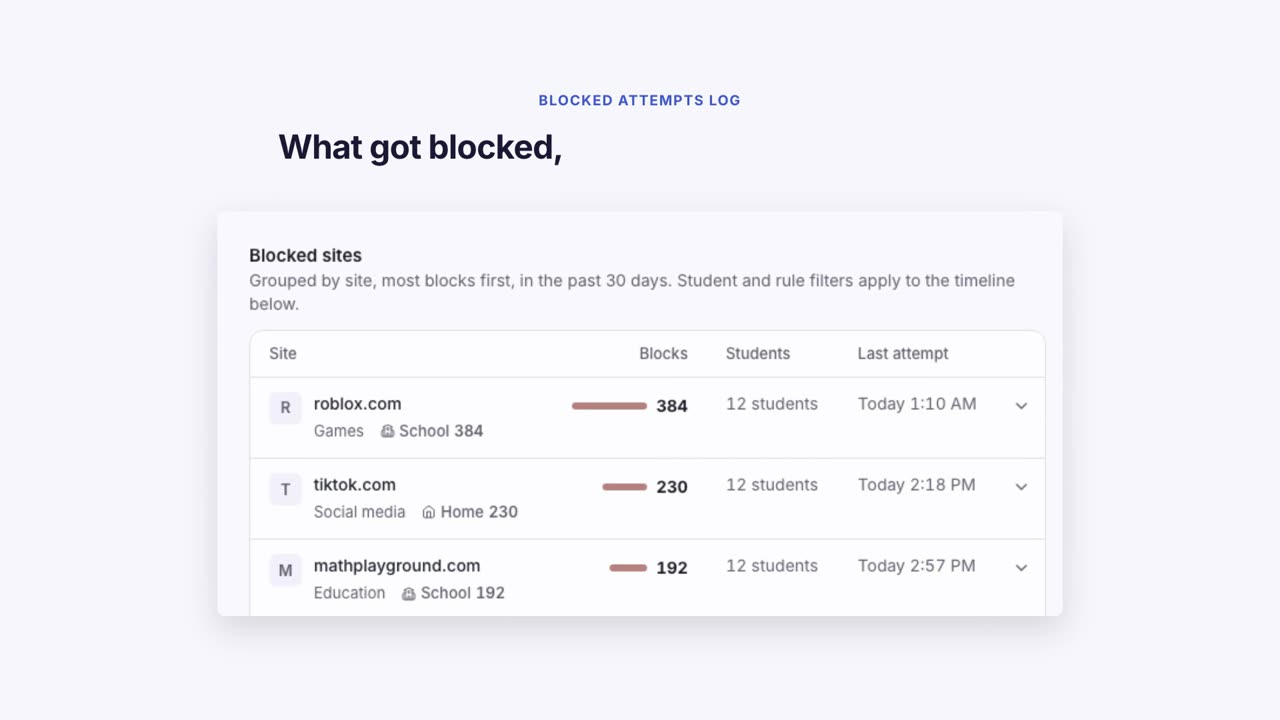
    Try any URL against your real policy in the Simulator. Read-only, nothing logged or enforced.

    Read the transcript

    When you're building a filtering policy, you need to know it will work as intended. Umbrelly lets you test any URL against your school's real policy, without affecting students. Type a URL, click Open in Simulator, and see what your policy would do. The Simulator shows the result instantly, read-only, nothing logged or enforced. Then the Blocked attempts log shows you exactly what got blocked, which students, and which rule. And a separate Logged, not blocked list shows what students tried that your policy monitored but allowed. Test a site before you change a rule. Umbrelly. Safe classrooms. Smart coverage.

  • Still from the video "Access requests on the Dashboard"

    Access requests on the Dashboard

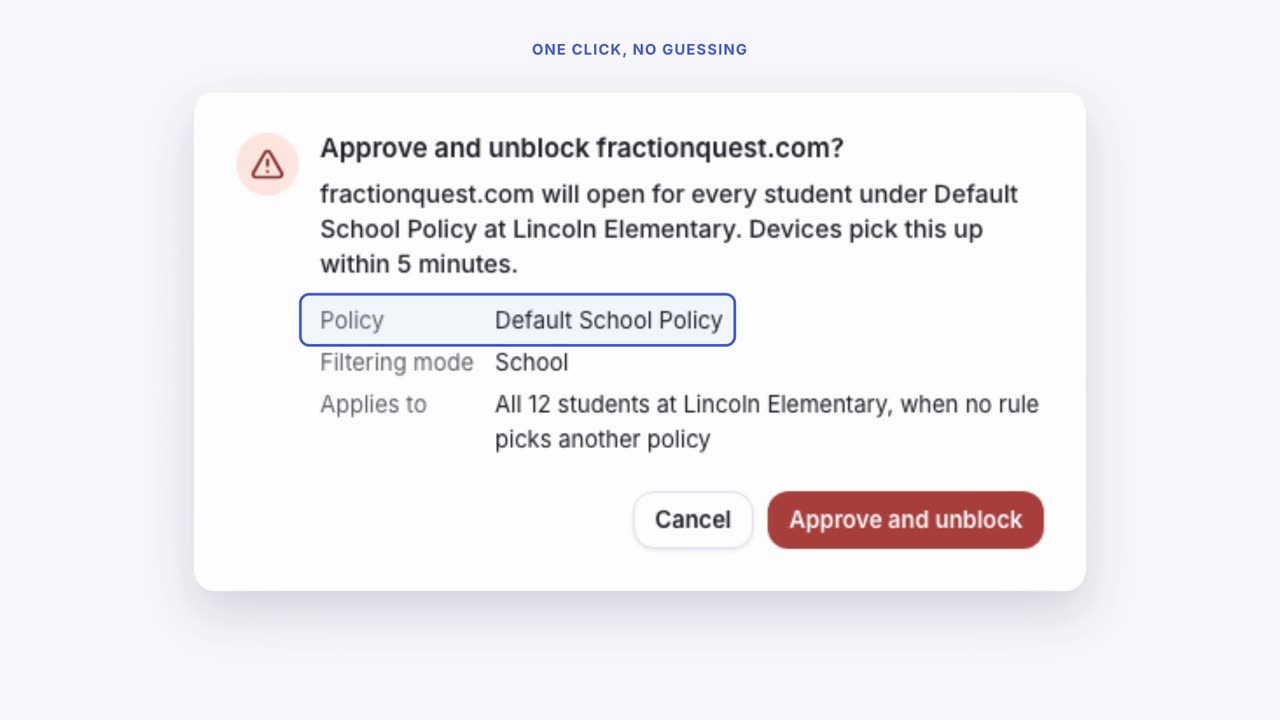
    Each request arrives with the student's reason. Approve with one click, and see what it opens first.

    Read the transcript

    A student asks for access. It lands in a queue. You don't always know what approving it actually opens. With Umbrelly access requests, every ask lands on your Dashboard with the student's reason, and you approve with one click. Under Waiting on you, the request sits right there, with who asked, for what site, and why. Approve, and a confirm shows exactly which policy it opens, and which students it reaches. If Umbrelly didn't record the block, you choose the policy yourself, so nothing opens by accident. Devices pick up the change in about five minutes, no chasing anyone down to confirm it worked. One click clears the queue. Umbrelly. Safe classrooms. Smart coverage.

Want to see it with your own school's setup?

Request a demo